Dashboard
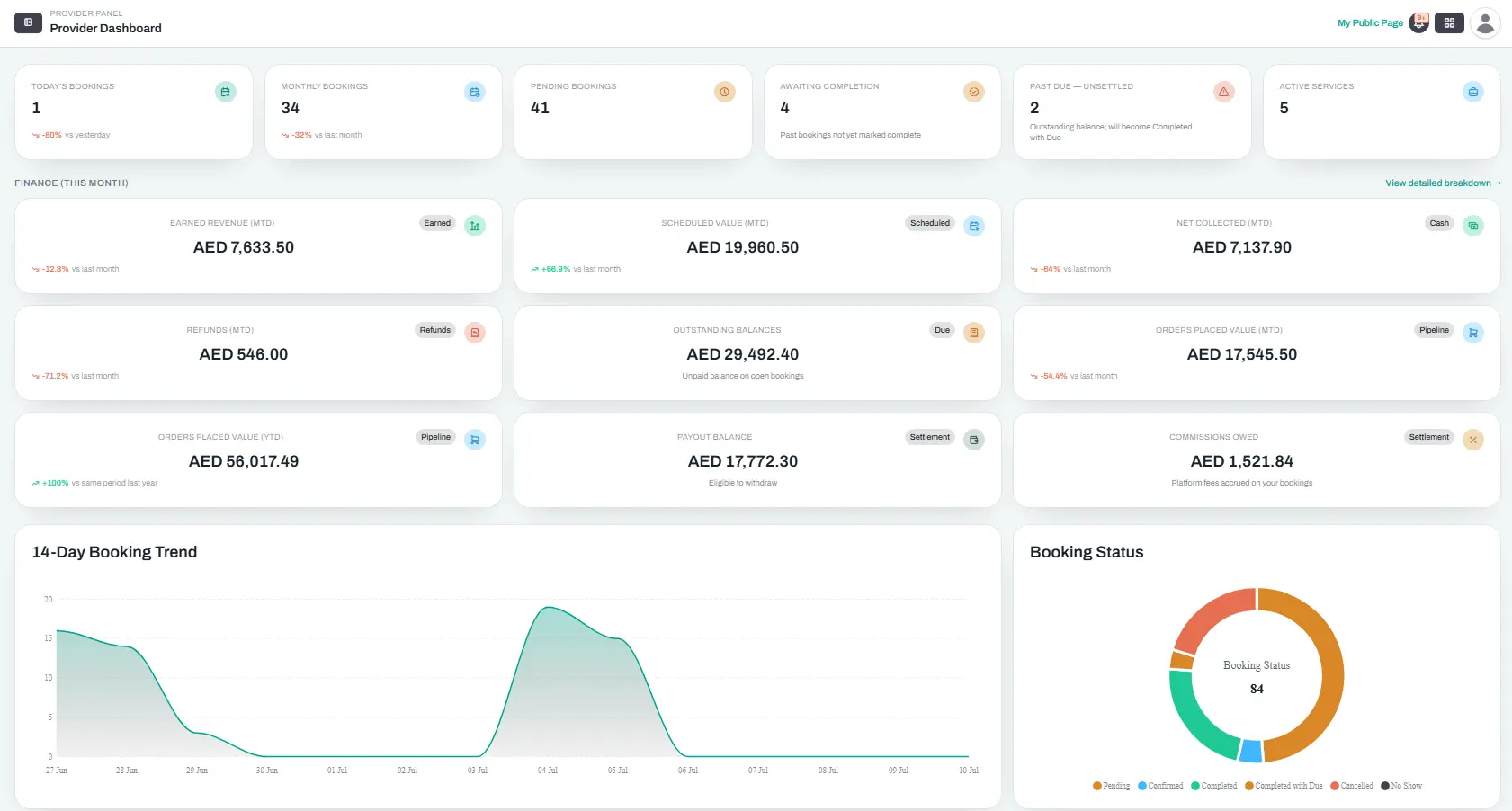
Your Dashboard is the first thing you see when you log in. Think of it as your command centre — one place that shows how your business is doing today, this month, and over time.
- KPI Cards — Your Business at a Glance
- Charts — Spot Trends
- Billing Snapshot & Top Services
- Recent Bookings
- Today's Schedule
- Quick Actions
- Recent Reviews
KPI Cards — Your Business at a Glance
The Dashboard is split into two KPI sections: Operations (bookings and catalog) and Finance (This Month) (money metrics). Each financial card has a small badge (Earned, Scheduled, Cash, Refunds, Pipeline, Due, or Settlement) so you can tell at a glance what kind of number you are looking at.
Most KPIs include a trend arrow (up/down/flat) with a percentage change — vs yesterday for Today's Bookings, vs last month for most others, and vs same period last year for the YTD card.
Operations
| KPI | Trend | What It Shows | Hint |
|---|---|---|---|
| Today's Bookings | vs yesterday | How many bookings you have today, compared to yesterday | — |
| Monthly Bookings | vs last month | Total bookings created this month, compared to last month | — |
| Pending Bookings | — | Bookings waiting for you to confirm | — |
| Awaiting Completion | — | Past confirmed bookings whose end time has passed but are not yet marked complete | Past bookings not yet marked complete |
| Past Due — Uncompleted | — | Uncompleted past bookings with an outstanding balance (paid amount < total) | Outstanding balance; will become Completed with Due |
| Active Services | — | How many services you currently have active in your catalog | — |
Finance (This Month)
| KPI | Badge | Trend | What It Shows |
|---|---|---|---|
| Earned Revenue (MTD) | Earned | vs last month | Revenue from services completed this calendar month — sum of totals for Completed/CompletedWithDue bookings where completed_at falls this month |
| Scheduled Value (MTD) | Scheduled | vs last month | Total value of bookings with a service date this month — excludes cancelled/rejected |
| Net Collected (MTD) | Cash | vs last month | Customer payments received minus refunds this month |
| Refunds (MTD) | Refunds | vs last month | Money returned to customers on cancellations and amendments — includes card refunds and cash |
| Outstanding Balances | Due | — | Unpaid balance on open bookings — sum of (total_amount − paid_amount) on active bookings with remaining balance |
| Orders Placed Value (MTD) | Pipeline | vs last month | Total contract value of orders created this month — excludes cancelled/rejected |
| Orders Placed Value (YTD) | Pipeline | vs same period last year | Total contract value of orders created from January 1 to today — excludes cancelled/rejected |
| Commissions Owed | Settlement | — | Total platform commission accrued on your bookings (lifetime total, not month-limited) |
For a full period breakdown with gross revenue and refunds by day, week, or month, open Reports → Revenue Summary from the link below the finance cards.
{primary} Tip: Check your Dashboard at the start of each day. The "Today's Bookings" and "Awaiting Completion" cards help you spot what needs your attention before customers start calling.
If this is your first time logging in and you haven't completed the Setup Wizard, you'll be redirected there automatically. Once your setup is done, the Dashboard unlocks with real data.
Charts — Spot Trends
Below the KPI cards, three charts help you understand your business trends.
Booking Trend (Area Chart)
Shows how many bookings you received each day over the last 14 days. Use this to spot which days of the week are busiest and whether demand is growing week over week.
Booking Status Distribution (Donut Chart)
A circular chart that breaks down your current bookings by status — how many are pending, confirmed, completed, cancelled, and so on. Each segment is colour-coded so you can quickly see the balance.
Monthly Revenue Trend (Line Chart)
A line chart tracking two metrics over the last 12 months:
- Orders Placed Value — the total contract value of new orders created each month
- Net Collected — actual customer payments received minus refunds each month
This chart helps you compare pipeline growth against actual cash collected. A widening gap between the two lines may signal collection issues or an increase in unpaid balances.
{info} Charts are refreshed periodically. If you just made a change (like confirming a booking), it may take a few minutes to show up in the charts.
Billing Snapshot & Top Services
On the right side of the charts row, you'll see two cards stacked vertically.
Billing Snapshot
A snapshot showing three numbers:
- Current Plan Fee — what your subscription plan costs this billing period
- Current Overage — any extra charges for going over your plan limits (branches, services, or staff)
- Total Due Now — what you owe right now
Click the Subscription link to go to the full billing page where you can see details, pay invoices, or upgrade your plan.
{info} The billing snapshot only shows data if you have an open billing statement. If you just signed up, this section may be empty until your first billing period closes.
Top Services
Shows your top 3 most-booked services by number of bookings. If you're wondering which services to promote or which ones aren't getting traction, this quick list gives you the answer at a glance.
Recent Bookings
This table shows your 5 most recent bookings. Each row shows:
- Order ID — a short reference number
- Customer — who booked
- Service — what they booked
- Status — colour-coded badge (Pending, Confirmed, Completed, etc.)
- Amount — the total booking amount
Click any row to go straight to the booking detail page.
Today's Schedule
This table shows all of today's bookings in time order. Each row shows:
- Time — when the booking starts
- Customer — who's coming
- Service — what they booked
- Status — colour-coded badge
Click a row to see the full booking details and take actions like confirming, rescheduling, or marking as complete.
Quick Actions
Four buttons give you one-click access to common tasks:
| Button | Where It Takes You |
|---|---|
| POS | The walk-in point-of-sale wizard — book a customer who's right in front of you |
| All Bookings | The full booking list with filters |
| Scheduler | The resource scheduler board — see who's booked and when |
| Add Service | Go to your services page to create a new service |
{primary} Tip: Use these buttons instead of navigating through the sidebar when you're in a hurry. They're designed for the most common actions you'll take during daily operations.
Recent Reviews
The bottom section shows your 3 most recent customer reviews that have been approved by the platform team. Each review shows:
- The customer's name
- A star rating (1 to 5 stars)
- Their comment (truncated if long)
Reviews are a great way to see what customers think of your services. To reply to a review or see the full list, click the Reviews link in the Growth section of your sidebar.
{info} Reviews must be approved by the Reservai team before they appear here. If a customer left a review recently and you don't see it, it may still be pending approval.
Related Pages
- Sidebar Menu Map — understand every item in your sidebar
- Transactions — detailed payment ledger
- Plan & Billing — billing details and invoice history