Provider Sidebar Menu Map
The Provider sidebar is the main way to navigate Reservai. Every item in your sidebar is explained below — click any link to jump straight to that page in your account.
{primary} If you're a staff member, your sidebar may show fewer items than listed here. Your provider controls which sections you can see based on your role.
{info} What does "with permission" mean? Providers see every item in their sidebar — no restrictions. Staff members, however, can only access items that their assigned role allows. The provider sets these permissions in the Roles section under Administration. For example, a staff member with a "Receptionist" role might see bookings but not financial reports. If you're a staff member and a menu item is missing, ask your provider to check your role's permissions.
- Main
- Operations
- Bookings
- Schedule
- Finance
- Growth
- Administration
- Account
- Support
- Staff vs Provider: Quick Reference
Main
| Menu Item | What It Does | Who Can Access It |
|---|---|---|
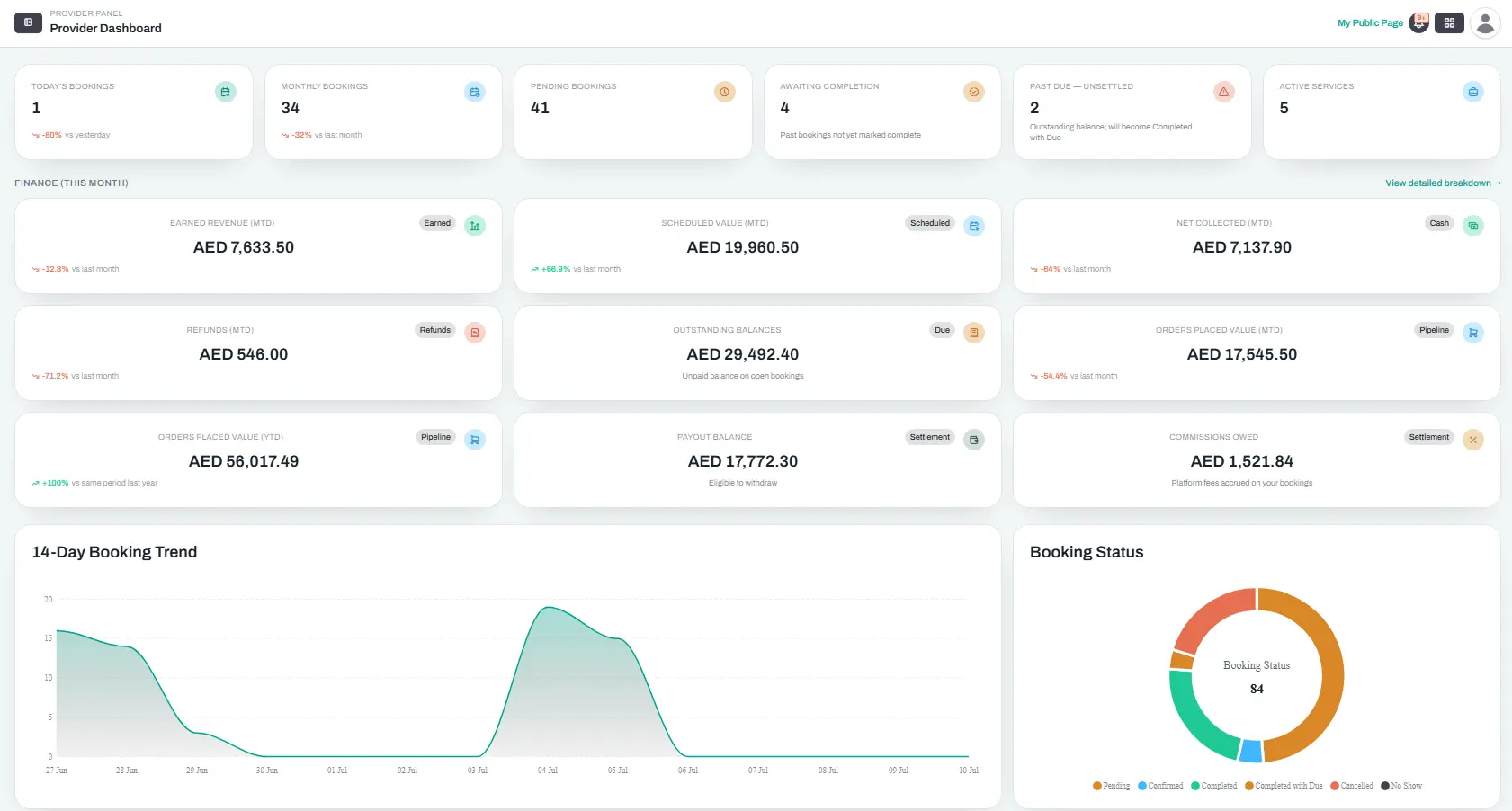
| Dashboard | Your daily command centre — shows KPIs, charts, recent bookings, and quick actions | Everyone |
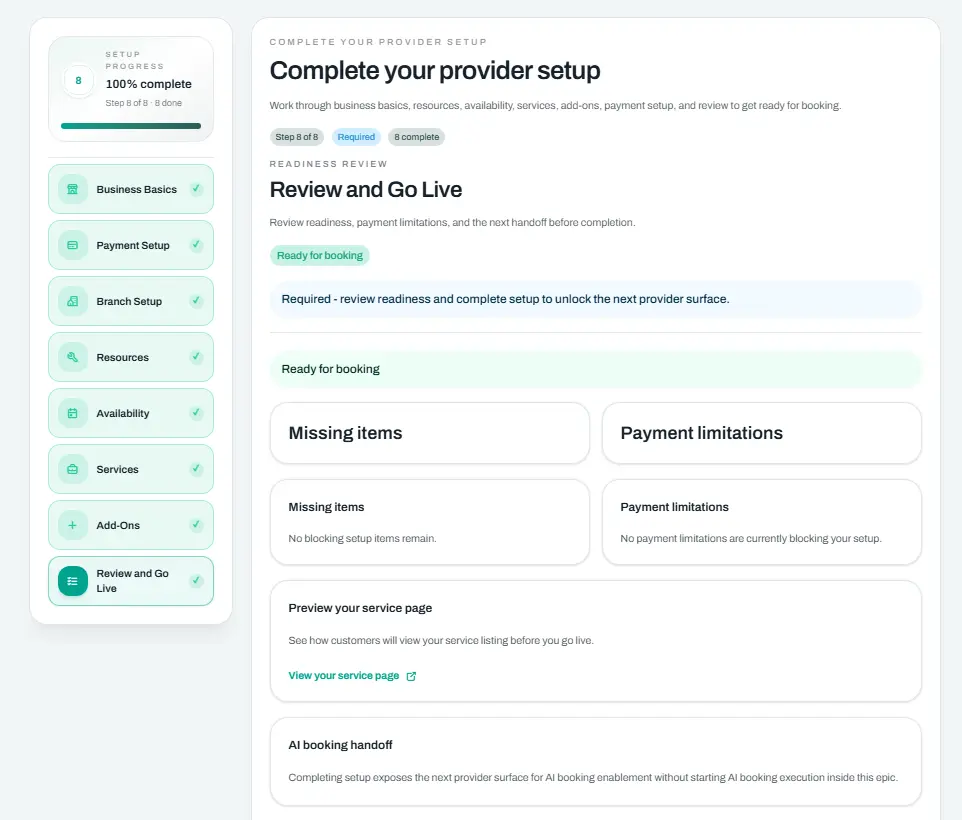
| Setup Wizard | A step-by-step guide to configure your business details, branches, resources, services, and payment setup | Providers only |
The Dashboard is where you start every day — a snapshot of today's bookings, finance metrics, pending items, and more.
The Setup Wizard reappears here even after you've completed it, so you can revisit any step to update your configuration. Staff members don't see this item.
Operations
Everything related to your service catalog, bookable items, and business settings.
| Menu Item | What It Does | Who Can Access It |
|---|---|---|
| Business Setup | Update your business name, contact info, currency, payment setup, and branch details | Everyone with permission |
| Resources | Manage your bookable items — rooms, equipment, vehicles, or facilities — and set their schedules | Everyone with permission |
| Services | Your full service catalog. Create and edit services, set pricing and duration, manage add-ons | Everyone with permission |
| Products | Retail items you can sell alongside bookings, like merchandise or supplies | Everyone with permission |
Business Setup has three tabs: Business Basics (name, phone, email, timezone, currency), Payment Setup (how you get paid), and Branch Setup (add or edit your locations and their working hours).
Resources are the people, places, or things customers book — for example, a treatment room, a forklift, or a yacht. Each resource has its own weekly schedule that controls when it's available.
Services is where you build what customers actually book. Each service links to one or more resources.
Products are extras you sell at checkout but aren't booked by time — like retail goods, spare parts, or merchandise.
Bookings
Everything related to reservations, from the full list to walk-in sales.
| Menu Item | What It Does | Who Can Access It |
|---|---|---|
| All Bookings | The complete list of every reservation — filter by date, status, service, or customer | Everyone with permission |
| POS | Walk-in point-of-sale — book a service for a customer who's right in front of you | Everyone with permission |
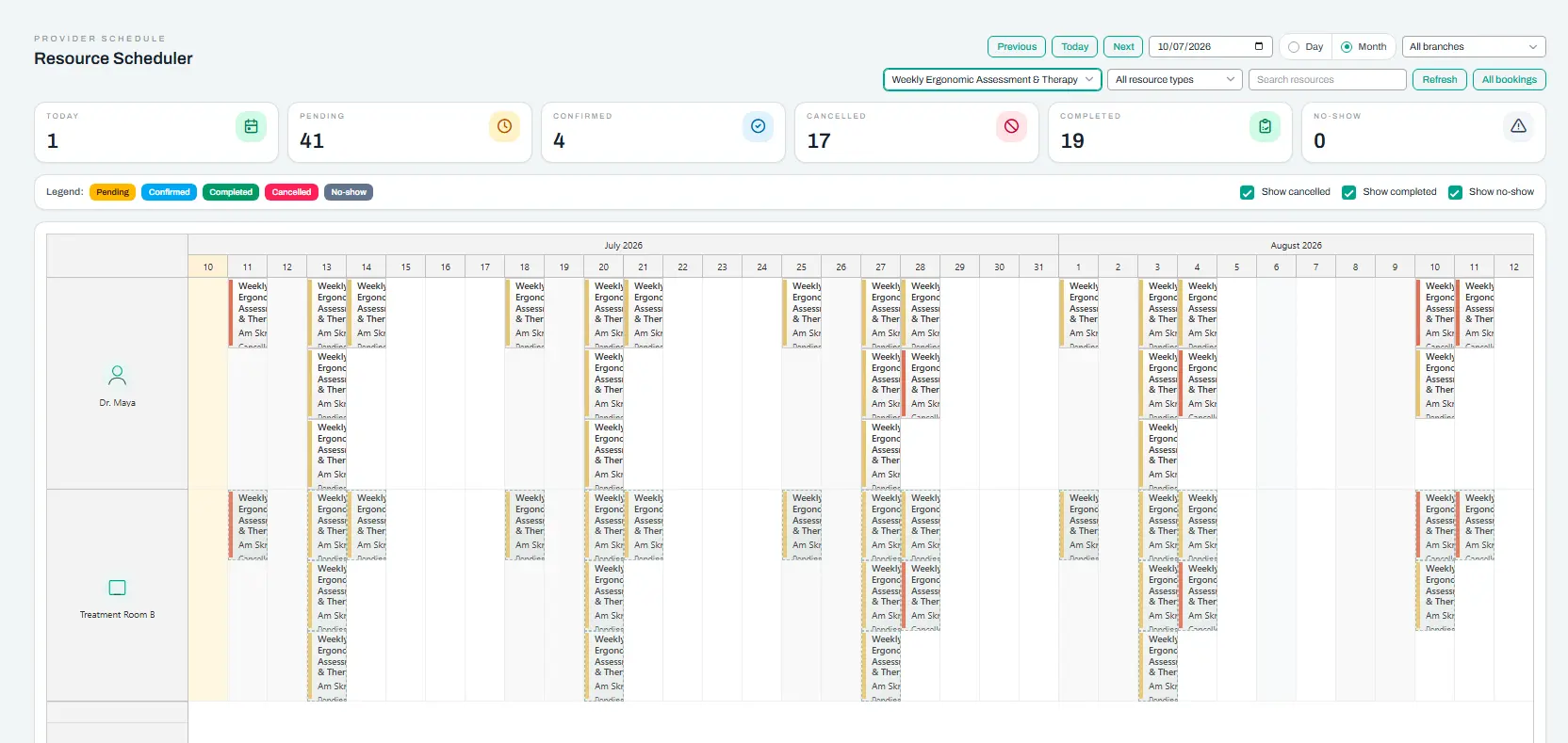
| Resource Scheduler | A visual board showing your resources and their booked time slots across the day | Everyone with permission |
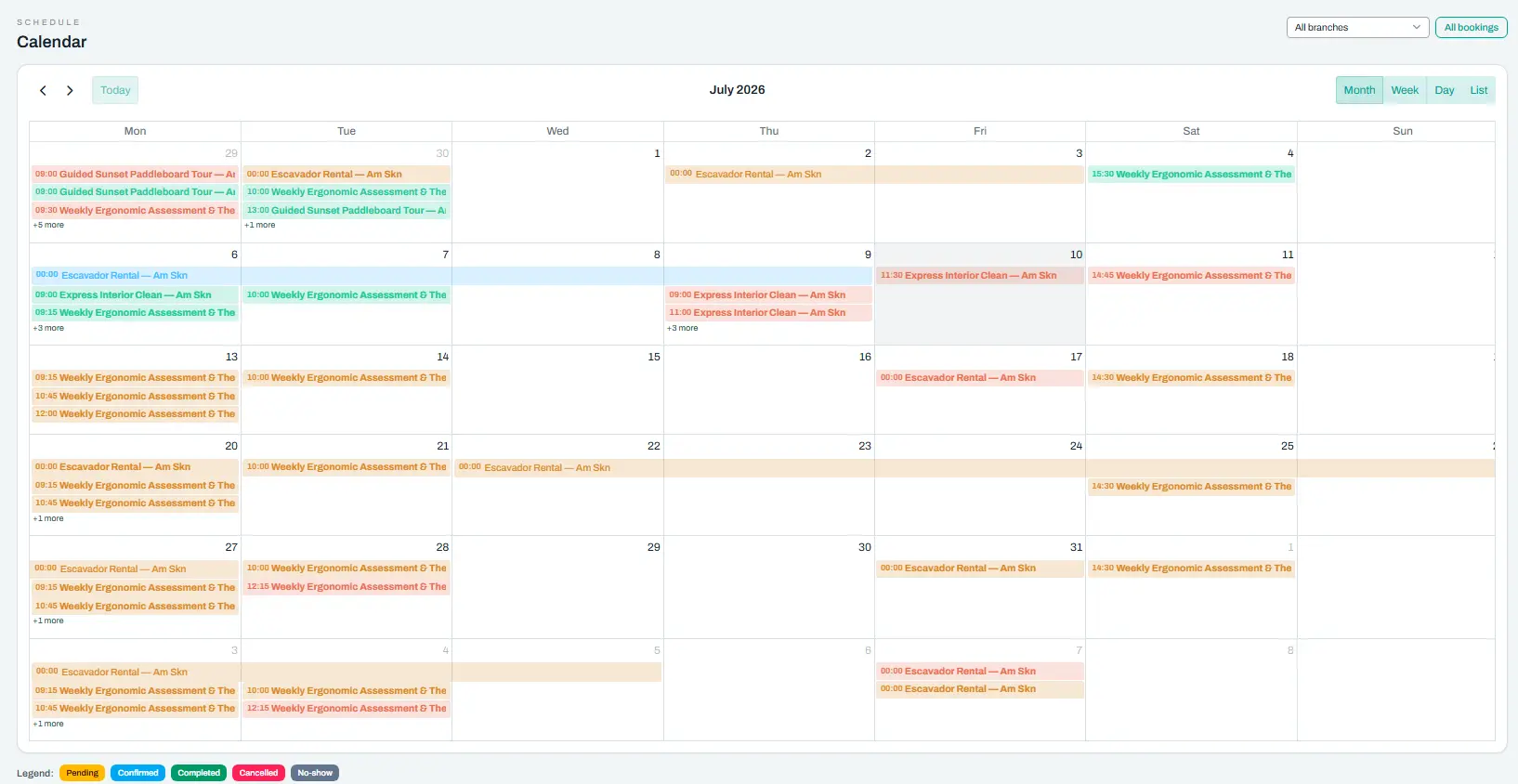
| Calendar | Month, week, and day views of all appointments across all resources | Everyone with permission |
All Bookings is where you manage reservations. You can search, filter, click any booking to see its full details, and take actions like confirming, rescheduling, or completing it.
POS (Point of Sale) is for in-person customers. Instead of asking them to book online, you walk through the wizard with them — pick the service, choose a time, add any extras, and take payment right there.
Resource Scheduler shows you who or what is booked and when. Drag a booking to reschedule it, or click to see details. This is the best view for day-of operations.
Calendar gives you the big picture across weeks or months — great for planning ahead.
Schedule
Visual tools for managing your time and resource availability.
| Menu Item | What It Does | Who Can Access It |
|---|---|---|
| Resource Scheduler | Day view of each resource with booked time slots — drag to reschedule | Everyone with permission |
| Calendar | Month, week, or day calendar showing all appointments at a glance | Everyone with permission |
These two items also appear under Bookings because they're closely related to managing reservations. You can access them from either section.
Finance
Track your earnings, payments, and subscription.
| Menu Item | What It Does | Who Can Access It |
|---|---|---|
| Plan & Billing | View your current plan, usage, billing history, and download invoices | Everyone with permission |
| Subscription | Compare plans, upgrade, downgrade, or change your billing cycle | Everyone with permission |
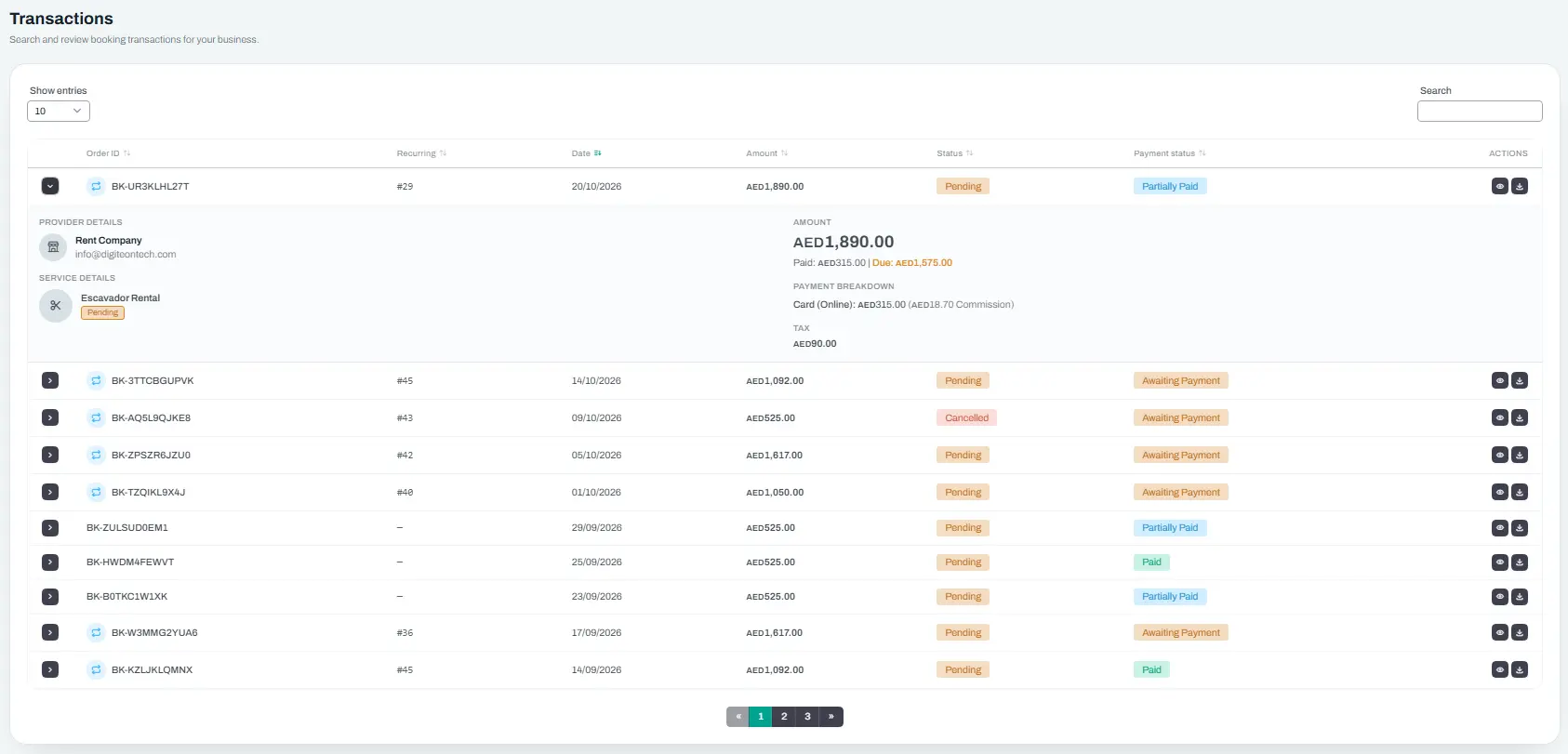
| Transactions | The full payment ledger — every booking payment, commission charge, and refund | Everyone with permission |
Plan & Billing shows what you're currently paying, how much of your plan you've used, and your invoice history. You can download past invoices as PDFs.
Subscription lets you see what each plan offers and switch between them. Before downgrading, you'll see a warning about any features or limits that will change.
Transactions is your complete financial record. Every time a customer pays, a commission is charged, or a refund is issued, it appears here.
Growth
Engage with customers and understand your performance.
| Menu Item | What It Does | Who Can Access It |
|---|---|---|
| Reviews | Read and reply to customer reviews about your services | Everyone with permission |
| Promotions | Create discount codes and special offers (coming in a future update) | Everyone |
| Reports | Dive into the report types covering bookings, revenue, commissions, services, and customers | Everyone with permission |
Reviews shows all customer feedback. The platform team reviews each review before it goes public. You can reply to any review from this page.
Promotions is not yet available — it's marked for a future release.
Reports gives you data to make informed decisions. See which services are most popular, when customers tend to book, where your revenue comes from, and how much the platform charges in commissions.
Administration
Manage your team and their access levels.
| Menu Item | What It Does | Who Can Access It |
|---|---|---|
| Staff | View your team, invite new members, and manage their profiles | Everyone with permission |
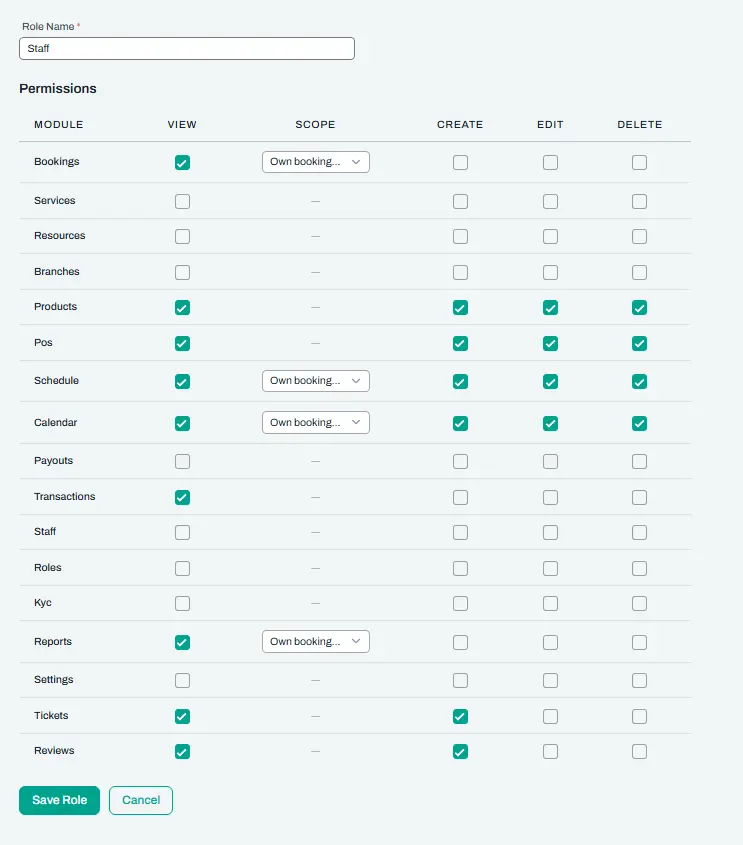
| Roles | Create permission sets (like "Receptionist" or "Manager") and control what each role can see and do | Everyone with permission |
| Staff Resources | Assign staff members to specific resources in bulk — for example, link each hairstylist to their salon chair | Everyone with permission |
Staff is your team directory. When you invite someone, they receive an email with a link to set their password and log in.
Roles is how you control access. For example, a "Receptionist" role might be able to view and manage bookings but not access financial reports. You can create as many roles as you need.
Staff Resources is a bulk assignment page. If you have 10 staff and 20 resources, this page makes it quick to set who works with what.
Account
Your personal settings and account management.
| Menu Item | What It Does | Who Can Access It |
|---|---|---|
| Profile Settings | Update your name, email, phone number, and profile photo | Everyone |
| Verification | Submit identity or business documents for KYC verification (only appears if required) | Providers only, when needed |
| Booking Widget | Get an embed code to let customers book from your own website | Providers only |
| Security Settings | Change your password, view active sessions, and verify your phone number | Everyone |
| Delete Account | Permanently close your account — this cannot be undone | Everyone |
Profile Settings is where you keep your personal details up to date.
Verification (also called KYC) only appears if your country or payment setup requires it. You'll see a Verification link in your sidebar between Profile Settings and Booking Widget. Once your documents are approved, the link disappears.
Booking Widget gives you a snippet of code to paste into your website. Your customers can then book services directly without leaving your site. The page includes a live preview so you can test how it looks.
Security Settings lets you change your password, review which devices are logged into your account, and verify your phone number for extra security.
Delete Account is permanent — all your data will be removed after a short grace period. Make sure you've withdrawn any balance and downloaded anything you need before proceeding.
Support
Get help when you need it.
| Menu Item | What It Does | Who Can Access It |
|---|---|---|
| Tickets | Create a support request and track its progress | Everyone with permission |
| Notifications | View all your in-app notifications — booking alerts, payment updates, and announcements | Everyone |
Tickets is the support system. Open a ticket describing your issue, and the Reservai team will respond. You can add replies and track the status as it's being worked on.
Notifications is your message centre. You'll see booking confirmations, payment receipts, system announcements, and reminders here.
Staff vs Provider: Quick Reference
Here's a summary of which sidebar items each user type can access.
| Sidebar Section | Items Visible |
|---|---|
| Main | Both see Dashboard. Setup Wizard appears only for providers. |
| Operations | Both see all 4 items — but staff only if their role has permission for that module. |
| Bookings | Both see all 4 items — but staff only with the right permissions. |
| Schedule | Both see both items — but staff only with the right permissions. |
| Finance | Both see all 4 items — but staff only with the right permissions. |
| Growth | Both see all 3 items — but staff only with the right permissions. |
| Administration | Both see all 3 items — but staff only with the right permissions. |
| Account | Profile Settings, Security Settings, and Delete Account are visible to everyone. Verification and Booking Widget appear only for providers. |
| Support | Both see Tickets and Notifications — but staff need permission for Tickets. Notifications has no permission gate. |
{info} For a complete guide to permissions and how to set them up, see Roles & Permissions.