Bookings Overview
Every reservation on Reservai — from a simple haircut to a multi-day yacht charter — is represented by a Booking. This page explains how bookings work, what information they capture, where they come from, and how they move through their lifecycle.
- What Is a Booking?
- Booking Sources
- Guest vs Registered Customers
- The Booking Lifecycle
- Snapshots: Why Past Data Stays Accurate
- Recurring Bookings
- Amendments
- Disputes
- Quick Start: Finding and Managing Bookings
- Tips & Best Practices
- Related Pages
What Is a Booking?
A booking is a reservation for one of your services. Each booking captures:
- Who — customer name, email, phone, and address (whether they have an account or not)
- What — which service, which add-ons (if any), and which resources
- When — date, start time, end time, and total duration
- Where — which branch the booking is for
- How much — base price, add-on costs, tax, total amount, and how much has been paid
Every booking gets a unique Order ID that starts with BK- followed by a number (for example, BK-1024). You'll see this ID everywhere — in the booking list, in emails sent to customers, and on invoices.
{info} A booking can exist even if the customer doesn't have an account on Reservai. The system captures their contact details directly so you can still reach them.
Booking Sources
Bookings can come from five different channels. Each one is labelled in the booking list so you can see where a reservation originated:
| Source | What It Means |
|---|---|
| Web | The customer booked through your public booking page or the Reservai marketplace |
| POS | You or your staff created the booking in person using the Point of Sale flow |
| Widget | The customer booked through the embeddable widget on your own website |
| AI Chat | The customer booked through the AI chat assistant on your service page |
| API | The booking was created programmatically through the Reservai API |
Guest vs Registered Customers
Customers can book with you in two ways:
Registered customers have a Reservai account. They can log in, view their booking history, cancel or reschedule online (within your policy), and manage their profile. Their name, email, and phone are linked to their account.
Guest customers don't have an account. They provide their name, email, and phone when booking. Guests verify their identity through a one-time code sent to their email or phone. They can still view and manage their booking through a secure link sent in their confirmation email.
{info} Even when a guest books, their contact details are stored on the booking so you can always reach them. The booking works the same way for you regardless of whether the customer has an account.
The Booking Lifecycle
Every booking moves through a series of statuses. Here's the high-level journey:
Created → Pending → Confirmed → Completed
                              ↘ Cancelled
                              ↘ No Show
When a booking is first created (from any source), it enters the Pending status. You then Confirm it, which locks the reservation. After the appointment happens, you Complete it — or mark it as No Show if the customer didn't turn up. At any point you can Cancel a booking.
There are also two special statuses:
- Payment Hold — An online booking that needs payment before it can become Pending. The customer has a time limit to pay.
- Completed with Due — A past appointment that wasn't fully paid. The customer still owes money.
{primary} Each status is explained in detail on the Booking Statuses page. The actions you can take are covered in Common Actions.
What About Draft Bookings?
When a customer starts the online booking wizard but hasn't finished paying, the system creates a temporary Draft record. Draft bookings are hidden from your booking list by default — they only exist while the customer is still completing their checkout. Once payment is received, the draft becomes a normal booking.
{info} You never need to manage Draft bookings. They are automatically cleaned up if the customer doesn't complete the checkout.
Snapshots: Why Past Data Stays Accurate
When a booking is created, Reservai takes a snapshot (a point-in-time copy) of key information. This means the booking record always reflects what was true at the time of booking, even if you later update your services, prices, or resources.
The booking captures snapshots of:
- Service — name, duration, cancellation policy, deposit rules
- Resource — name, type, any specifications
- Branch — name and address
- Pricing — base price, add-on prices, tax rate, and how the total was calculated
For example, if you raise the price of a haircut from 50 to 60, existing bookings still show 50. The snapshot preserves the price that was agreed at the time of booking.
{primary} This is why the booking detail page sometimes shows slightly different information than your current service setup — it's showing what was true when the customer booked.
Recurring Bookings
Some services allow customers to book a recurring series — for example, a personal training session every Monday for 8 weeks. When this happens, the system creates:
- A Recurring Series record that defines the pattern (weekly, monthly, number of occurrences)
- One Booking for each occurrence in the series
Each booking in a series works independently — it has its own status, payment tracking, and can be managed separately. But the booking list groups them together so you can see they're part of a series.
{info} When you cancel one booking in a recurring series, you can choose to cancel just that one occurrence or that occurrence plus all future ones.
Amendments
If a booking needs to change after it's been created — for example, the customer wants to upgrade to a more expensive add-on — the system records an Amendment. Amendments track:
- What the total was before the change
- What the new total is
- Whether a refund is due (if the total went down)
- Whether additional payment is needed (if the total went up)
Amendments appear in the booking's history so you have a complete audit trail of every change.
Disputes
If a customer disputes a charge on a completed booking, they can open a Dispute. The dispute goes through a review process:
- Bookings paid through the platform's payment system go to the Reservai admin team for review
- Bookings paid through your own Stripe account go to you for review first
Disputes can only be opened on completed bookings within a configurable time window after the appointment.
Quick Start: Finding and Managing Bookings
Here's how to get to your bookings and take action:
- From the sidebar, click All Bookings under the Bookings section
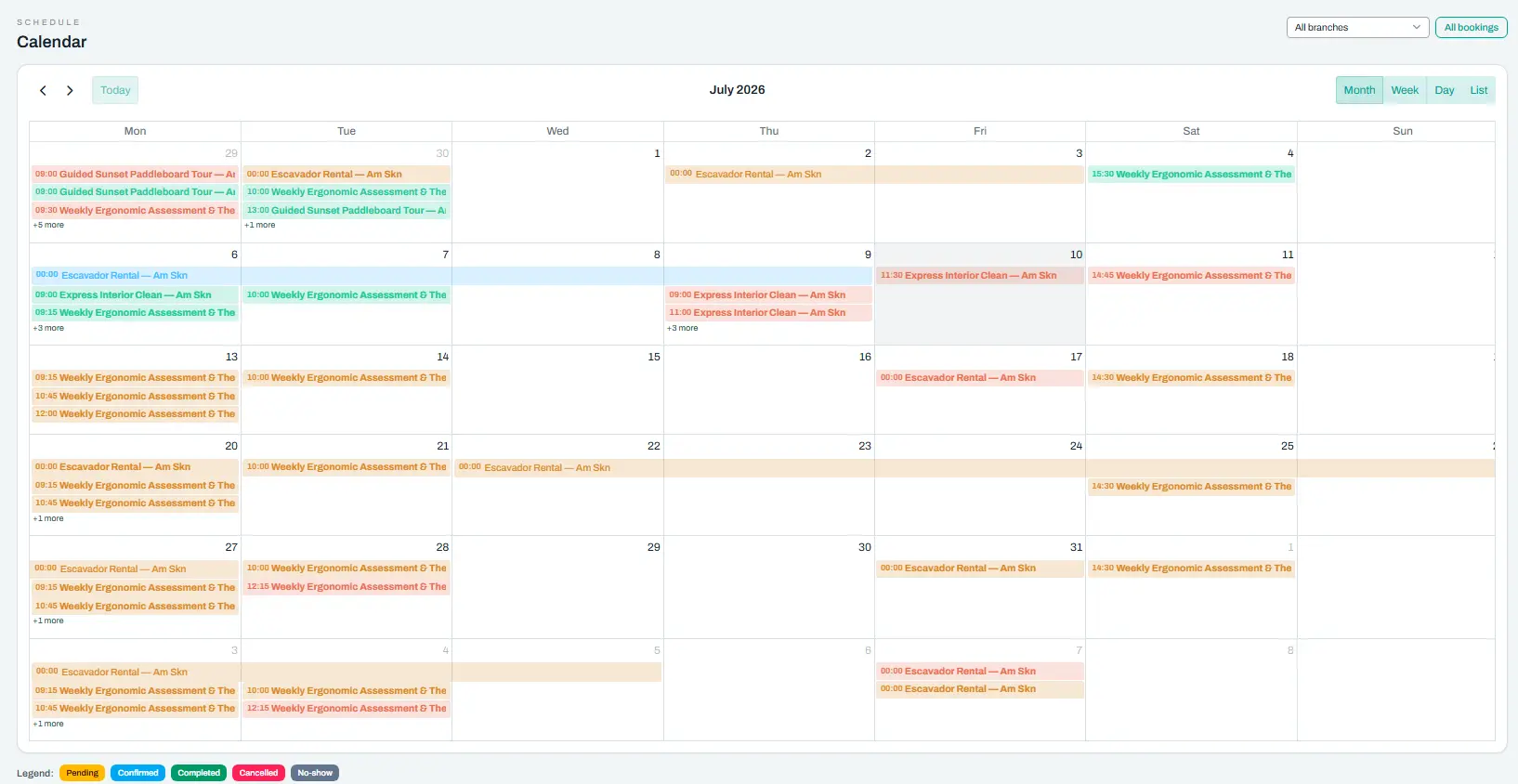
- Use the filters to narrow down — search by customer name or Order ID, filter by status, date range, service, or resource
- Click any booking row to open the Booking Detail page
- From the detail page, use the action buttons to confirm, complete, cancel, or take other actions
Tips & Best Practices
- Check your booking list daily — look for bookings that need confirmation or are waiting for payment
- Use filters to focus — if you have a busy day ahead, filter by today's date to see only what matters
- Keep an eye on the "Completed with Due" bookings — these are past appointments with unpaid balances that need collection
- The auto-complete warning icon tells you a past appointment still has an outstanding balance — collect payment to finalise it
- Use POS for walk-ins — the POS flow is faster and more suited to in-person transactions than the customer-facing wizard