Transactions
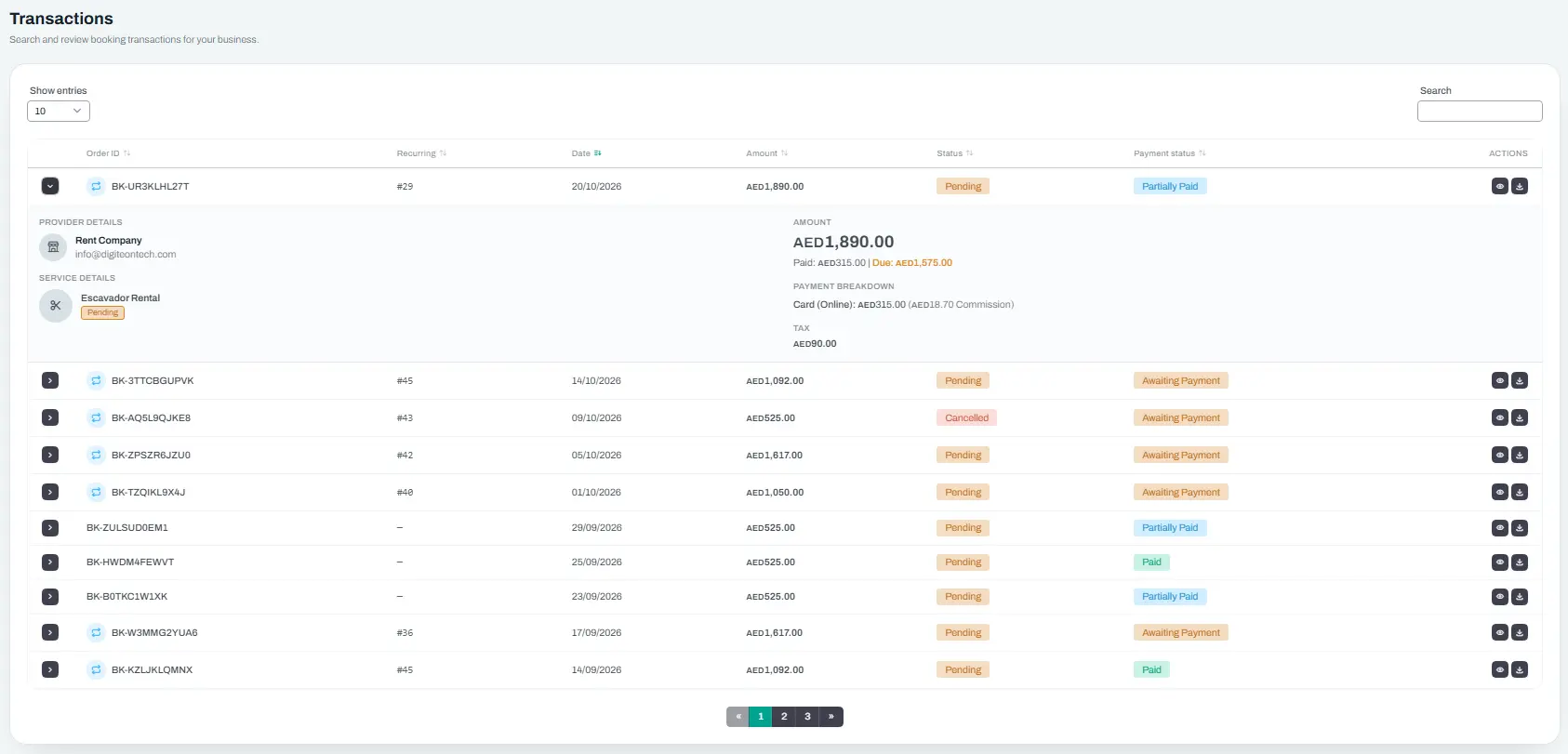
The Transactions page is your complete financial record. Every booking payment, platform commission, and refund appears here in a single list.
- What You'll See
- Searching and Filtering
- Reading a Transaction Row
- Expanding a Row — Payment Breakdown
- Downloading an Invoice
What You'll See
The Transactions page shows a table with these columns:
| Column | What It Shows |
|---|---|
| Expand | Click the arrow button to see the full payment breakdown for a booking |
| Order ID | A short reference number for the booking |
| Date | The date the booking was made |
| Amount | The total booking amount |
| Status | The booking status — colour-coded (e.g., Confirmed = blue, Completed = green) |
| Payment Status | Whether the payment is paid, pending, due, or refunded |
| Actions | Buttons to view the booking detail or download the invoice |
{primary} Each row represents one booking. If a customer booked three services in one visit, each one is a separate row.
Searching and Filtering
At the top of the page, you have two controls:
- Show entries — choose how many rows to show per page (10, 25, 50, or 100)
- Search — type any keyword to filter the list. The search looks through the order ID, customer name, customer email, and service name
You can also sort any column by clicking its header. Click once to sort ascending, click again to sort descending. The active sort column is highlighted in the brand colour.
{info} The search and sort settings are saved in your browser's address bar. If you bookmark the page or share the link, the filter stays applied.
Reading a Transaction Row
Each row shows a single booking. The key details to look at:
- Amount — the total amount the customer paid (or needs to pay) for this booking
- Status — where this booking is in its lifecycle (Pending, Confirmed, Completed, Cancelled, etc.)
- Payment Status — whether the money has actually been collected. This is different from the booking status. For example, a booking can be "Confirmed" but the payment could still be "Due"
Expanding a Row — Payment Breakdown
Click the arrow button on the left side of any row to expand it. This reveals a detailed breakdown for that booking, split into two columns:
Left column:
- Provider — your business name and email
- Service — what was booked, with a thumbnail image and status badge
Right column:
- Total amount — the full booking value in large text
- Paid amount — how much has been collected so far
- Refunded amount — any refunds issued (shown if applicable)
- Due amount — any remaining balance (shown if applicable)
- Payment ledger breakdown — a detailed list of each payment event: when it happened, how much, and what for (booking payment, commission charge, refund, etc.)
- Tax amount — any tax applied, such as VAT, GST, or sales tax (shown if applicable)
{info} The payment ledger breakdown is the same information the platform uses to reconcile accounts. If you ever need to verify a specific payment, this is where you look.
Downloading an Invoice
Each row has a download button in the Actions column. Click it to open a printable invoice for that booking. The invoice includes:
- Your business name and contact details
- The customer's name
- The service booked and its price
- Any add-ons or extras
- Taxes and discounts
- Total paid and payment method
You can print the invoice directly from your browser or save it as a PDF.
Related Pages
- Dashboard — KPI overview including revenue and commissions
- Plan & Billing — billing history and invoice downloads